
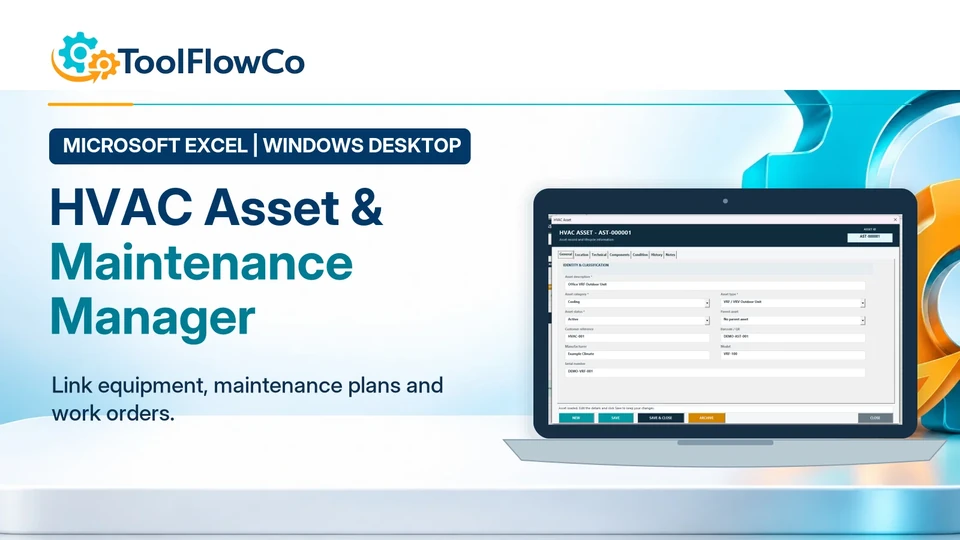
This article describes ToolFlowCo product development and testing. It is not presented as a customer deployment and does not claim measured customer time, cost or reliability improvements.
When I began building an HVAC maintenance manager in Excel, the aim was to create more than an asset list. I wanted one structured workbook that could connect sites, locations, equipment records, planned maintenance, work orders, parts, labour, costs, condition reviews and replacement planning.
The project developed into a complete desktop maintenance workflow with dedicated UserForms and a laptop-friendly control centre. This Build Story explains the decisions behind that workflow, the problems discovered during testing and the changes that helped turn a large workbook into a finished ToolFlowCo system.
Why I started building an HVAC maintenance manager in Excel
Asset information is often spread across several files. A business may keep an equipment register in one workbook, planned maintenance dates in another, repair costs in email or paper records and replacement decisions in a separate budget sheet.
That creates practical questions that are difficult to answer consistently:
- Which assets belong to a particular site and location?
- What maintenance is due, overdue or already complete?
- Which work orders, faults, parts and labour costs belong to an asset?
- What condition was recorded at the latest assessment?
- Which assets are approaching the end of their expected life?
- What evidence supports a replacement budget?
The workbook therefore needed a clear asset hierarchy and a reliable way to connect every maintenance record back to one Asset ID.
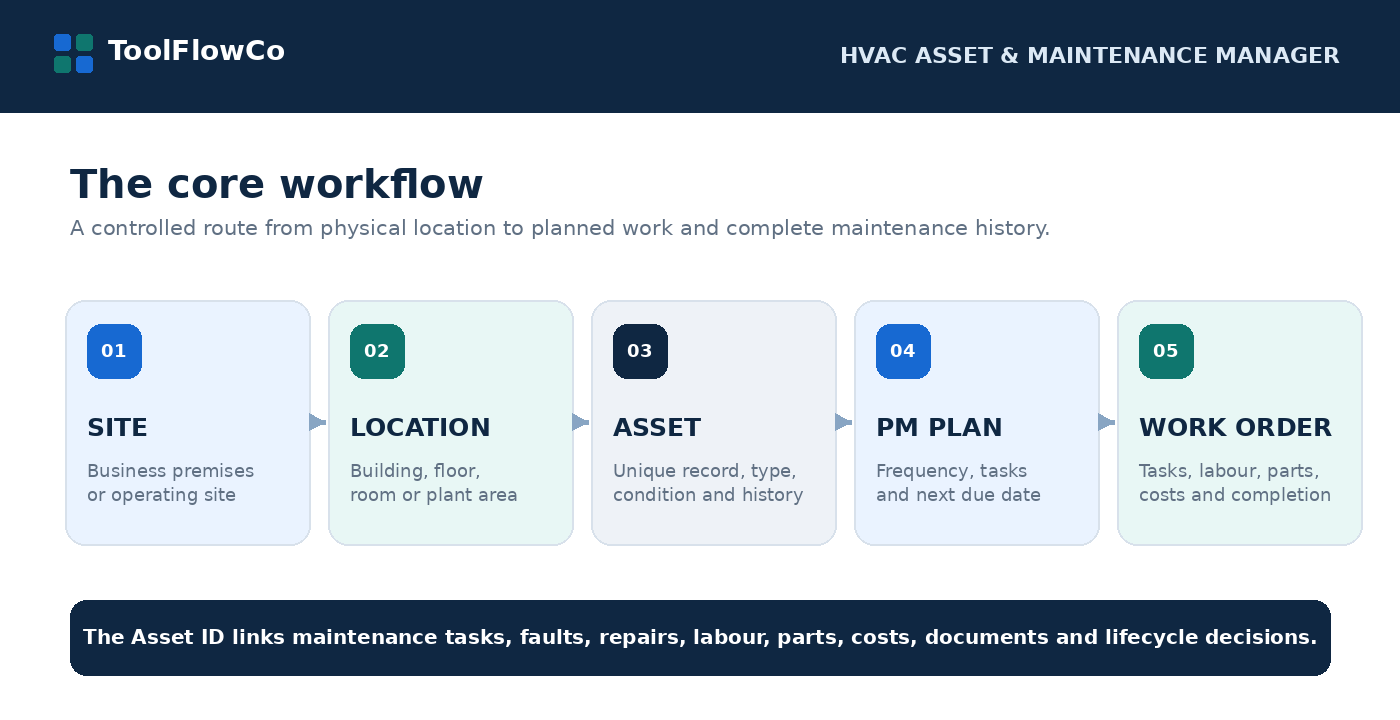
The foundation: Site → Location → Asset
The most important workflow decision was to organise the system around physical structure. A user begins with a site, selects a location inside that site and then sees the assets assigned to that location.
The completed route is:
- Open Sites and Locations from the Control Centre.
- Select the required site.
- Select a location within that site.
- Review the assets currently assigned there.
- Choose Add Asset Here to open the Asset form with the Site and Location already selected.
Preselecting the context matters. It reduces repeated entry and makes it less likely that a new asset will be attached to the wrong location.
The Asset ID became the centre of the system
Every asset receives a unique identifier. That ID is not only a reference shown on the Asset form; it is the connection point for the rest of the workbook.
Through that identifier, an asset can be linked to:
- Site and location
- Asset type, category and parent asset
- Manufacturer, model and serial number
- Preventive maintenance plans
- Work orders and maintenance tasks
- Faults and repairs
- Labour entries and parts used
- Other costs and supporting documents
- Condition assessments
- Meter readings
- End-of-life reviews and budgets
This prevented each module from becoming an isolated table. Opening an asset could lead to its maintenance and lifecycle information without relying on users to manually match descriptions or serial numbers.
Designing preventive maintenance around repeatable plans
A maintenance template describes the standard work, while a preventive maintenance plan connects that requirement to a specific asset and schedule. This separation makes it possible to reuse a task structure while still recording different due dates, frequencies, engineers or asset-specific notes.
The PM workflow was designed to support:
- Maintenance templates and individual tasks
- Frequency and next-due information
- Asset-specific preventive maintenance plans
- Generation of due work orders without repeatedly creating the same job
- Completion information that returns to the asset history
One of the key checks was idempotency: running the generation process again should not create duplicate active work orders for the same due maintenance event.
Turning a work order into the operational record
The work order became the place where planned or reactive work is carried out and costed. It connects the asset, job description, tasks, status, dates and completion details.
During development, parts and labour originally required users to leave the work-order workflow and return to the Control Centre. That was technically possible but unnecessarily interrupted the task.
The interface was therefore improved so parts and labour can be opened in the context of the selected work order. This keeps the job reference available and reduces the risk of recording cost against the wrong job.
A completed work order can contain:
- Planned and completed tasks
- Engineer or operative labour
- Parts used
- Other costs
- Fault and repair information
- Notes and supporting documents
- Completion date and resulting maintenance history
Parts and stock had to carry the complete record
The Parts Register and stock transactions are connected to work-order usage. Testing showed that moving only a part code was not enough. The user also needs the useful description and transaction context to remain visible when stock is issued, received or assigned to a job.
The final workflow therefore treats a parts transaction as more than a quantity change. It keeps the part identity, movement type, related work order and audit information together.
The interface required several redesigns
The workbook contains a large number of modules, so the user interface had to make the system feel navigable rather than overwhelming. The HVAC Control Centre provides a searchable list of areas and modules, while dedicated managers handle assets, sites, locations, records and lookups.
The first laptop-focused redesign reduced the size of forms, but testing showed that simply shrinking a desktop form was not enough. Some information became cramped, scrolling did not reach the full content area and table headings were not always clear.
The interface then went through another pass that:
- Restored useful information without returning to oversized forms
- Improved scrollable regions
- Added clearer table and section titles
- Kept buttons consistent across forms
- Made search and filters easier to use on a laptop display
- Kept the approved navy, teal, grey and amber action hierarchy
The lesson was simple: laptop-friendly design is an information-hierarchy problem, not only a form-size problem.
Condition and end-of-life needed to support judgement
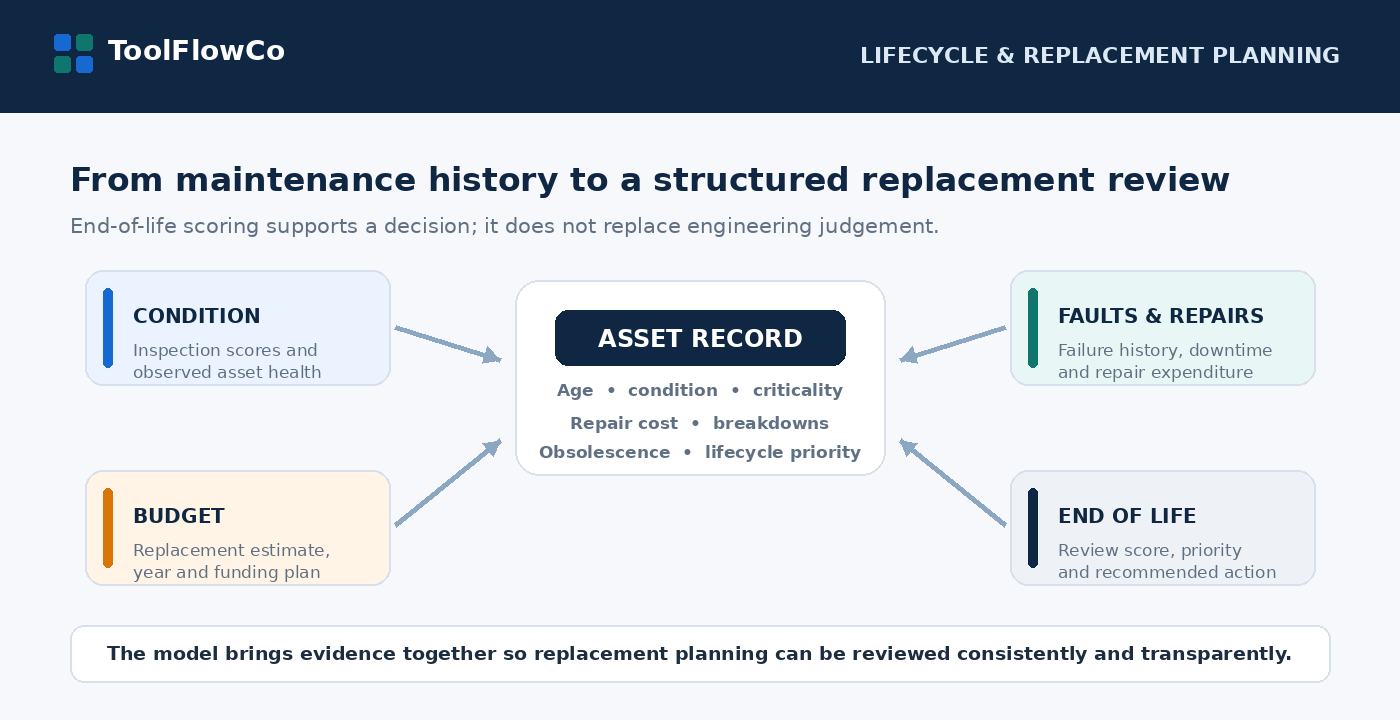
The end-of-life workflow was one of the more complex parts of the build because replacement planning should not be reduced to asset age alone.
The revised assessment brings together evidence such as:
- Asset age against expected life
- Recorded condition
- Repair-cost pressure
- Breakdown history
- Obsolescence
- Operational criticality
- Replacement estimate and budget timing
The scoring model was simplified so incomplete assessments are not treated as finished decisions, calculations use the assessment date consistently and duplicate active assessments are avoided.
The result is decision support rather than an automatic instruction to replace an asset. Engineering judgement, statutory requirements, site conditions and qualified inspection still take priority.
How I tested the completed workflow
The strongest tests followed a record through several connected modules rather than checking each form separately.
- Create a site and one or more locations.
- Open a location and add an asset with the Site and Location preselected.
- Search for the asset and confirm its hierarchy and technical details.
- Create a preventive maintenance plan against that Asset ID.
- Make the plan due and run work-order generation.
- Confirm the same due event does not generate duplicate active jobs.
- Open the work order and record tasks, labour, parts and other costs.
- Complete the work order and confirm the maintenance history updates.
- Record a fault and repair against the same asset.
- Add a condition assessment and review the end-of-life calculation.
- Create or review a replacement budget.
- Run backup and confirm the approved workbook structure still compiles.
Following the full route exposed issues that were not obvious when a UserForm was viewed on its own, particularly around selected IDs, due-state changes, scrolling and the transfer of parts information.
Preparing the workbook for resale
Once the main logic and layout were stable, the workbook was consolidated into a runtime-only structure. Temporary builder, repair and finaliser modules used during development were removed so the sellable version contains the code required to operate the system rather than the code used to construct it.
The final preparation work included:
- Retaining the approved four-module runtime structure
- Checking that the seven active UserForms opened through their intended workflows
- Removing duplicate development modules
- Providing backup and reset guidance
- Reviewing company-name settings and user-facing labels
- Preparing product images, listing copy and a user manual
- Confirming the workbook compiles after consolidation
What I learned from the build
The largest lesson was that an asset-management tool becomes useful when the records connect. A detailed Asset Register on its own cannot explain why maintenance is overdue, what a repair cost, which parts were used or whether replacement should be considered.
I also learned that interface changes have to be tested against complete workflows. A form may look cleaner after resizing while becoming harder to use because a command, table heading or scroll area is no longer visible.
Finally, lifecycle scoring should make the evidence clearer, not hide it. Users should be able to understand why an asset received a priority and then apply their own operational judgement.
Who the workbook is intended for
The ToolFlowCo HVAC Asset and Maintenance Manager is intended for smaller facilities, maintenance teams, contractors and service organisations that want a structured Excel desktop system for assets and planned work.
It is designed for users who are comfortable running a macro-enabled workbook in desktop Excel. It is not presented as a replacement for a large multi-user CAFM, CMMS or enterprise asset-management platform with mobile field service, live integrations and extensive permission management.
Use the completed manager or discuss a more specific requirement.
The finished ToolFlowCo workbook provides the complete Site-to-Asset maintenance structure described in this article. Where a business needs different fields, reports, maintenance logic or workflow stages, the same foundation can be discussed as a custom Excel project.
For workshop and service-operation workflows, see Workshop and Service Business Systems.
For the programming platform used in this development story, see the Microsoft Office VBA reference.
Put the workflow into practice
Explore the relevant tools.
Compare the product requirements with the approach in this guide.
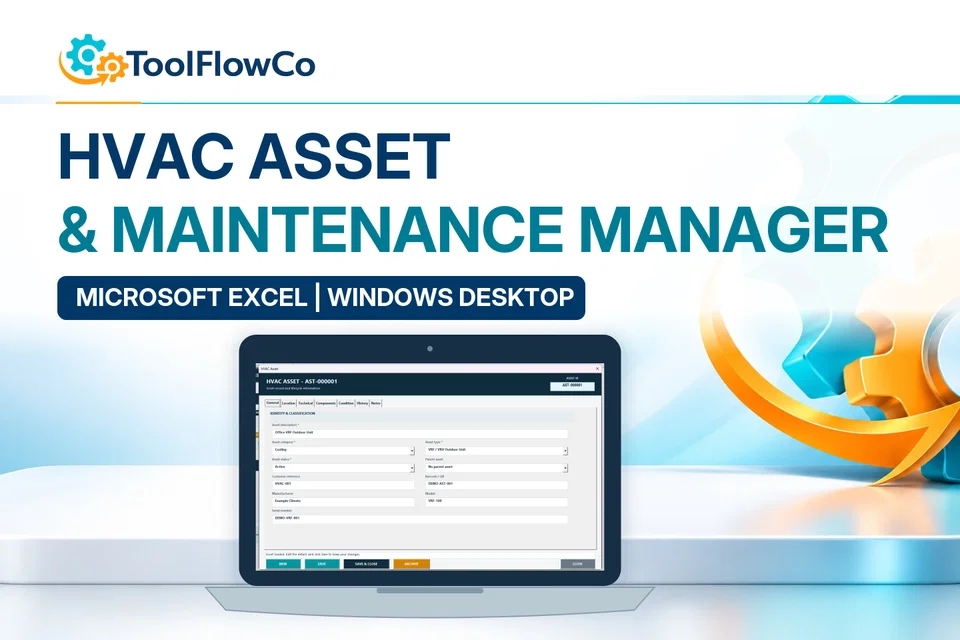
Microsoft Excel
HVAC Asset & Maintenance Manager
Manage HVAC assets, preventive maintenance, work orders, labour, parts, stock, costs, documents, condition and replacement planning in one connected Microsoft Excel desktop system.