
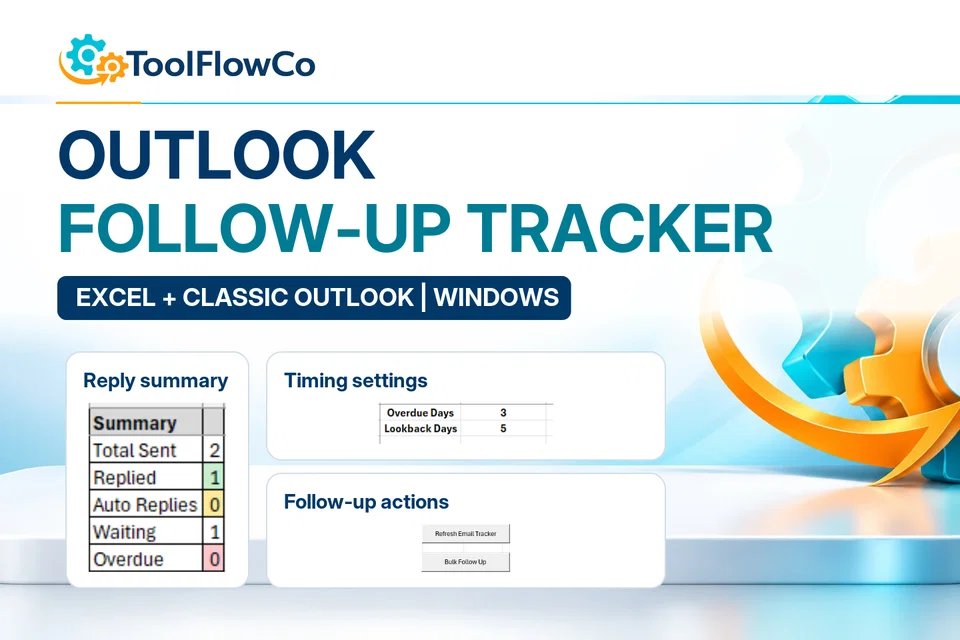
Excel Outlook Follow-Up Tracker for Email Replies and Bulk Reminders
Review sent emails, reply status, waiting time and overdue follow-ups from one Excel tracking table.
Best for: Sales follow-up
View product detailsToolFlowCo solutions
Use the follow-up tracker for unanswered conversations, or the attachment extractor for recurring spreadsheet files. Both use Excel with Classic Outlook for Windows; they are not browser-only Outlook add-ins.
Recommended products
Review sent emails, reply status, waiting time and overdue follow-ups from one Excel tracking table.
Best for: Sales follow-up
View product details →
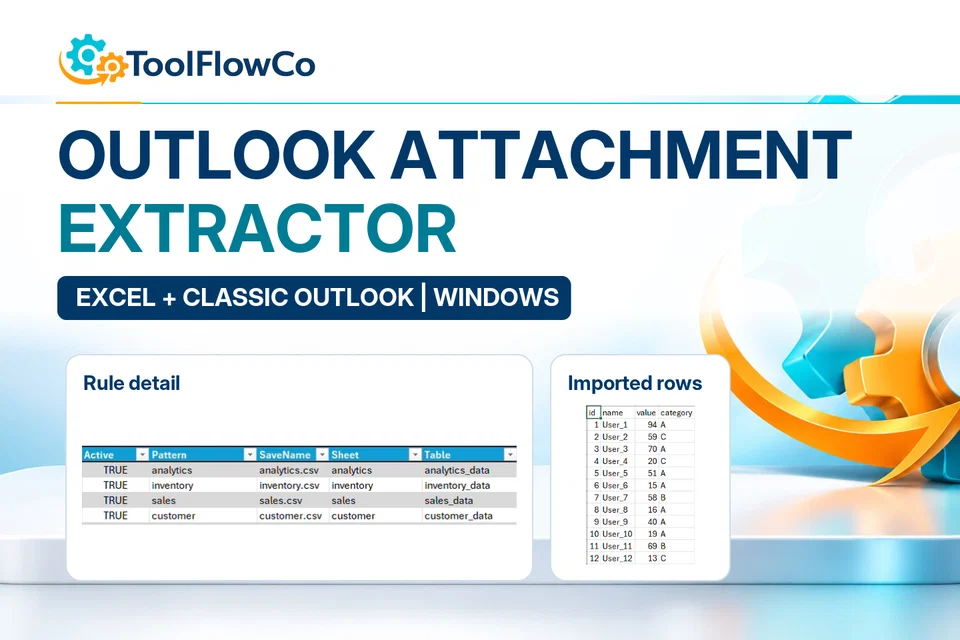
Set sender, subject, sheet, table and matching rules, then extract qualifying Outlook attachments into a structured Excel process.
Best for: Accounts administration
View product details →Choose the right approach
Follow-up tracking
Review replied, waiting and overdue conversations, then prepare follow-ups using the tracker.
Attachment processing
Use sender, subject and filename rules to select recurring spreadsheet attachments for processing.
Software requirements
These workflows require Windows desktop Excel and Classic Outlook, with permission to run the relevant automation.
Setup and testing
Follow the supplied guidance and test on sample messages before relying on the workflow for important records.
Compare these options and practical guides:
Use Microsoft Outlook help for the email application and Microsoft Excel help for the workbook environment. These references do not establish that a ToolFlowCo automation works in every Outlook edition. Retain the Classic Outlook and desktop requirements stated on the selected product, and check the support guidance before buying when unsure.
Compare products by platform and workflow, then check the compatibility information before purchasing.