
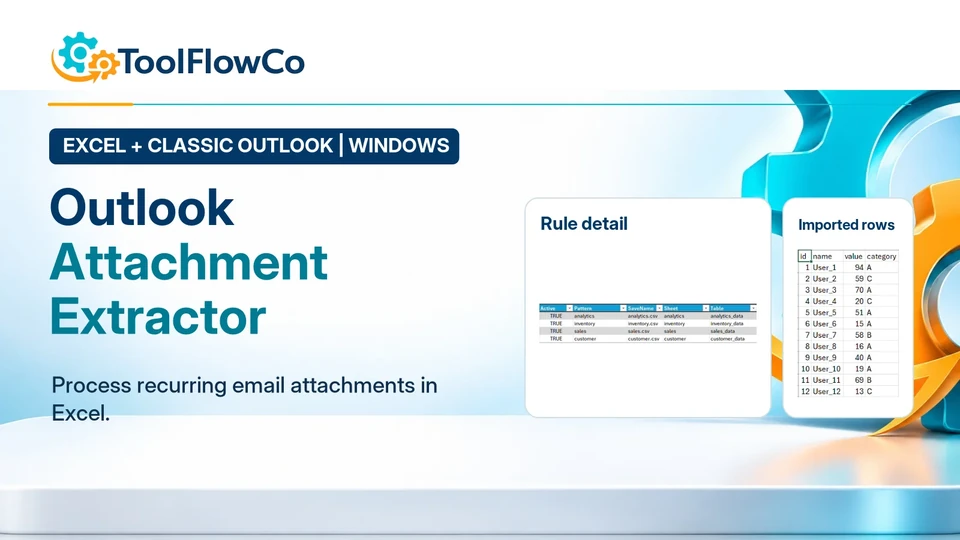
Outlook attachment extraction needs a testable rule for which messages and supported spreadsheet data should be processed. This guide covers the supplied Excel and Classic Outlook extraction workflow, not a general-purpose promise to archive every attachment type or run an unattended cloud service.
1. Outlook attachment extraction: define the test
The product requires desktop Excel and Classic Outlook for Windows. Extract the download, retain an untouched copy and follow the supplied security guidance. Use only files and messages you are authorised to process; do not weaken organisation-wide security settings.
2. Prepare a small test batch
Use a dedicated Outlook test folder containing one matching spreadsheet attachment and one deliberately non-matching message. Use fictional or non-sensitive test data. Keep copies of the originals.
3. Define a precise rule
Record the mailbox folder, sender, subject and attachment filename rule. Specify the source worksheet or table and the starting cell expected by your data. Match the actual attachment structure rather than assuming all files have the same layout.
4. Choose replace or append deliberately
The published extractor includes replace/append handling. Use an empty output area for the first test. Replace is appropriate only when that destination may be overwritten; append adds to an existing collection and needs a deliberate duplicate-handling process. Do not assume repeat runs remove duplicates unless the supplied product instructions confirm it.
5. Validate, run and inspect the result
Run the supplied setup/validation action, correct any reported problem, then run extraction. Review the rule-by-rule status log and compare the extracted rows against the source attachment. Confirm that the non-matching message was excluded. Resolve missing columns, wrong worksheet names and unexpected row counts before expanding the rule.
6. Repeat safely before using live data
Test a second matching file, a changed worksheet name and a repeat run using separate disposable outputs. Record what happens. This is a suggested validation procedure, not a claim that every input or error case has already passed testing.
What this product does
The Outlook Attachment Extractor uses configurable rules to process qualifying spreadsheet data into Excel. Do not assume it is a general-purpose archive for every attachment type or a cloud service running while your computer is off.
Read setup and compatibility guidance or ask about your actual attachment layout. For tracking unanswered messages rather than extracting attachment data, compare the separate Outlook Follow-Up Tracker.
Further platform guidance: Microsoft guidance on macro security. Check the separate requirements of any ready-made product.