Key takeaways
- Calculate stock from movements instead of typing over the current balance.
- Use a controlled location list so the same place is not entered under several names.
- Treat transfers as two-sided movements: stock leaves one location and arrives at another.
Start with three connected records
A multi-location inventory workbook is easier to maintain when it separates master data from transactions.
- Products: one row per SKU or item, including description, unit, reorder level and active status.
- Locations: one row per shop, stockroom, warehouse, shelf group, van or other controlled place.
- Movements: one row every time quantity enters, leaves or moves between locations.
The current quantity should be the result of the movement history. It should not be an isolated number that users overwrite.
Give every product and location a stable code
Names change and users type them differently. Codes provide a more reliable link between tables.
For example, use a product code such as FILTER-001 and location codes such as MAIN, VAN-01 and QUAR. The description can remain readable, but the code should stay stable.
- Avoid duplicate SKUs.
- Do not reuse an old code for a different product.
- Use dropdowns rather than free typing for locations.
- Keep inactive products and locations for history instead of deleting them.
Record each type of stock movement
A practical movement log should distinguish why the quantity changed.
| Movement | Typical information | Quantity effect |
|---|---|---|
| Receipt | Supplier, delivery reference, destination location | Adds stock |
| Sale or issue | Order, customer, job or reason | Removes stock |
| Transfer | From location and to location | Removes from one and adds to another |
| Adjustment | Damage, correction, loss or found stock | Adds or removes with a reason |
| Count correction | Count reference and discrepancy reason | Aligns the record with an approved count |
Handle transfers as one controlled transaction
A transfer is not simply a change to the destination balance. The system must reduce the source and increase the destination by the same approved quantity.
Include a transfer reference, product, quantity, from location, to location, date and user or note. Validate that the source has enough available stock before completing the movement. This prevents a transfer from quietly creating negative stock.
Calculate stock by product and location
The reporting layer should summarise the movement table in two ways:
- Total quantity for each product across every location
- Quantity for each product within each individual location
Excel tables, formulas, PivotTables or Power Query can all support this structure. The important point is that the summary comes from the same transaction history rather than from manually maintained totals.
Add controls before adding dashboards
Dashboards are useful, but accuracy starts with the entry process. Prioritise these controls first:
- Required product and location fields
- Positive quantities
- Valid movement types
- No transfer to the same location
- No issue or transfer above available stock unless an authorised exception is allowed
- A mandatory reason for adjustments
- A timestamp or movement reference
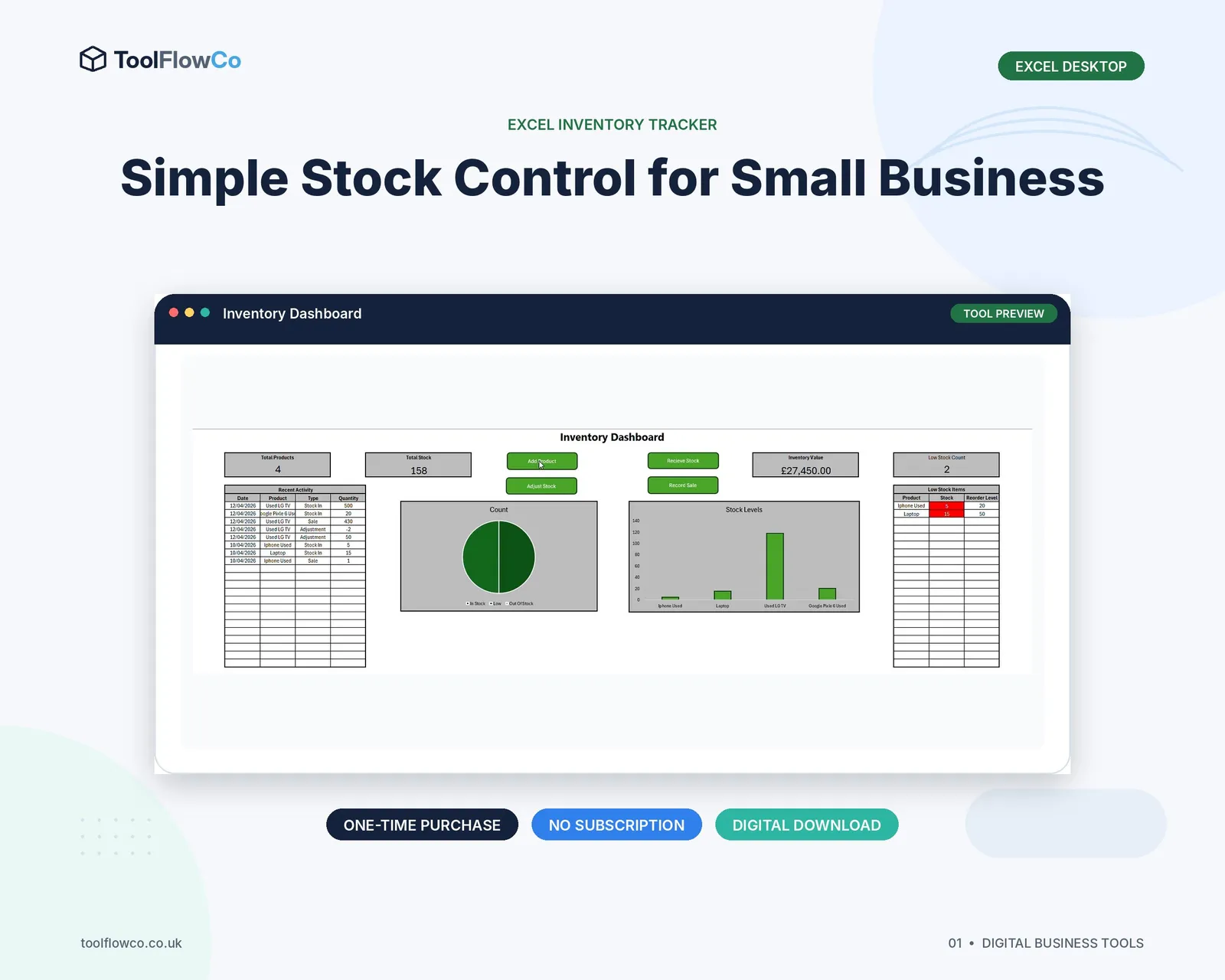
Once transactions are consistent, charts and KPIs become much more meaningful.
Use a repeatable daily workflow
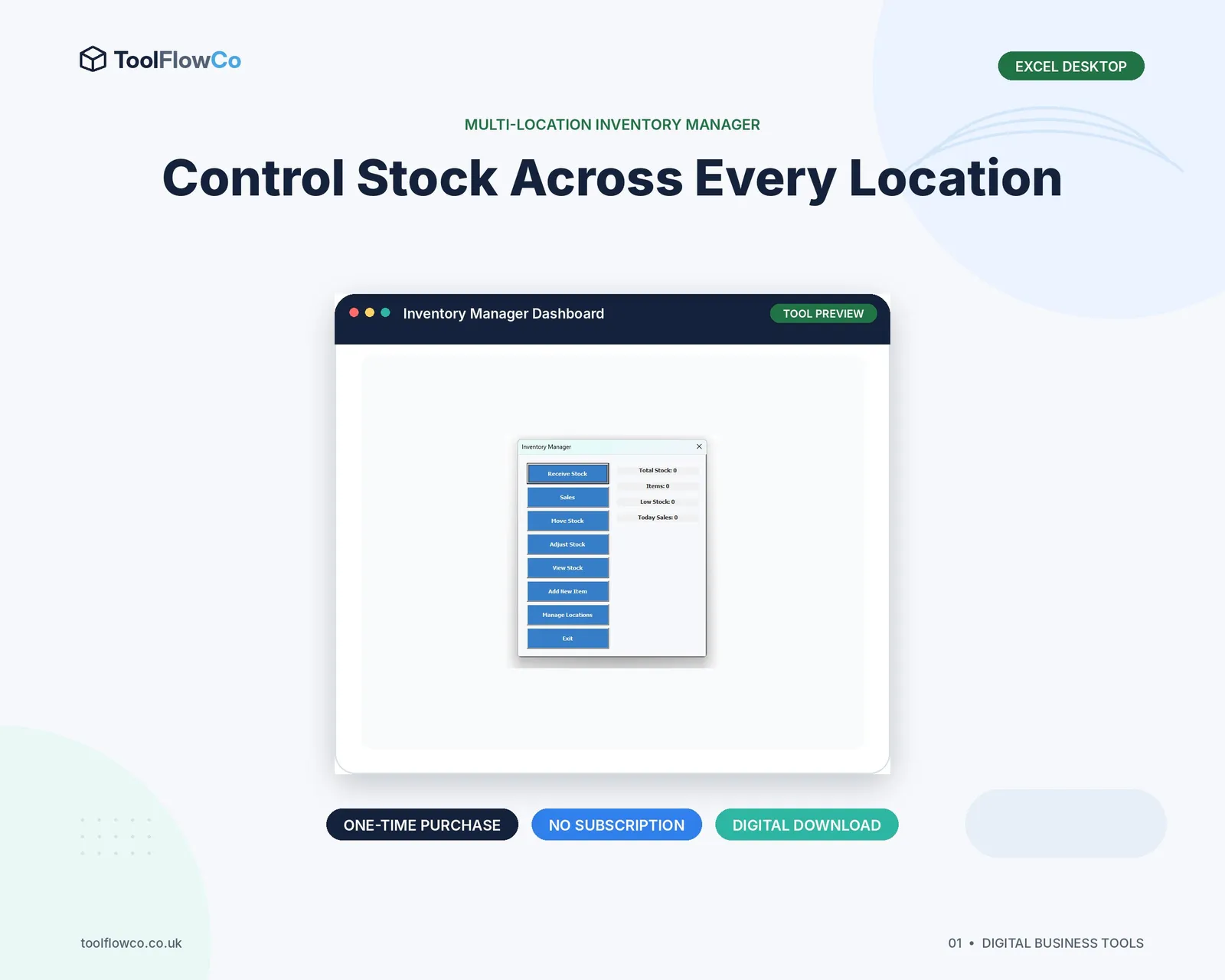
- Add new products and locations through controlled setup screens.
- Record receipts when goods arrive, using the actual destination location.
- Record sales or issues as stock leaves.
- Use the transfer workflow when stock physically moves.
- Use adjustments only for a documented exception.
- Review negative stock, low stock and unusual adjustments regularly.
- Run periodic counts and investigate differences.
Know when Excel is reaching its limit
Excel can work well for a small, disciplined process. Review a database or warehouse system when several users need simultaneous access, orders require picking and packing, permissions must be separated or the workbook is becoming too large and fragile.
The warning sign is not a specific number of rows. It is when the team can no longer explain how a quantity was produced or confidently follow one version of the process.
Frequently asked questions
Should each warehouse have a separate Excel file?
Usually not. Separate files make consolidation and transfer history harder. One controlled workbook with a location field is generally clearer for a small operation.
How should transfers be recorded?
Record the source, destination, product, quantity, date and reference as one controlled transaction that decreases one location and increases the other.
Can a PivotTable show stock by location?
Yes, provided the underlying movement data is structured consistently. The PivotTable should summarise calculated movement quantities rather than manually typed balances.
How do I stop negative stock?
Validate the available quantity before sales, issues or transfers are posted, and review any authorised exceptions through a separate report.
Build the movement history first
Reliable multi-location inventory starts with controlled product and location records and one complete movement history. When receipts, issues, transfers and adjustments are recorded consistently, Excel can calculate both total stock and location-level stock without maintaining competing balances.