Key takeaways
- Choose Sheets when browser access and collaboration are central to the workflow.
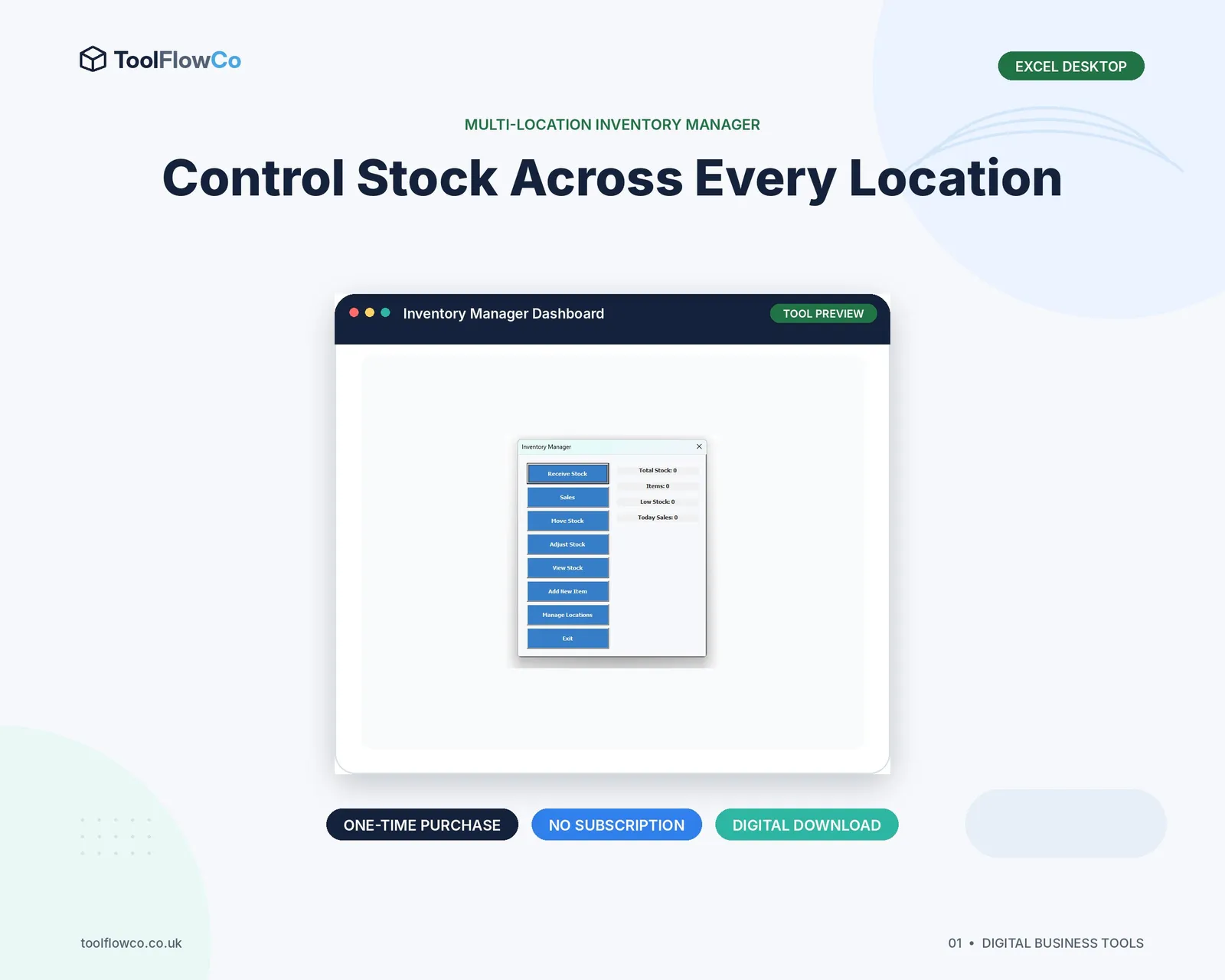
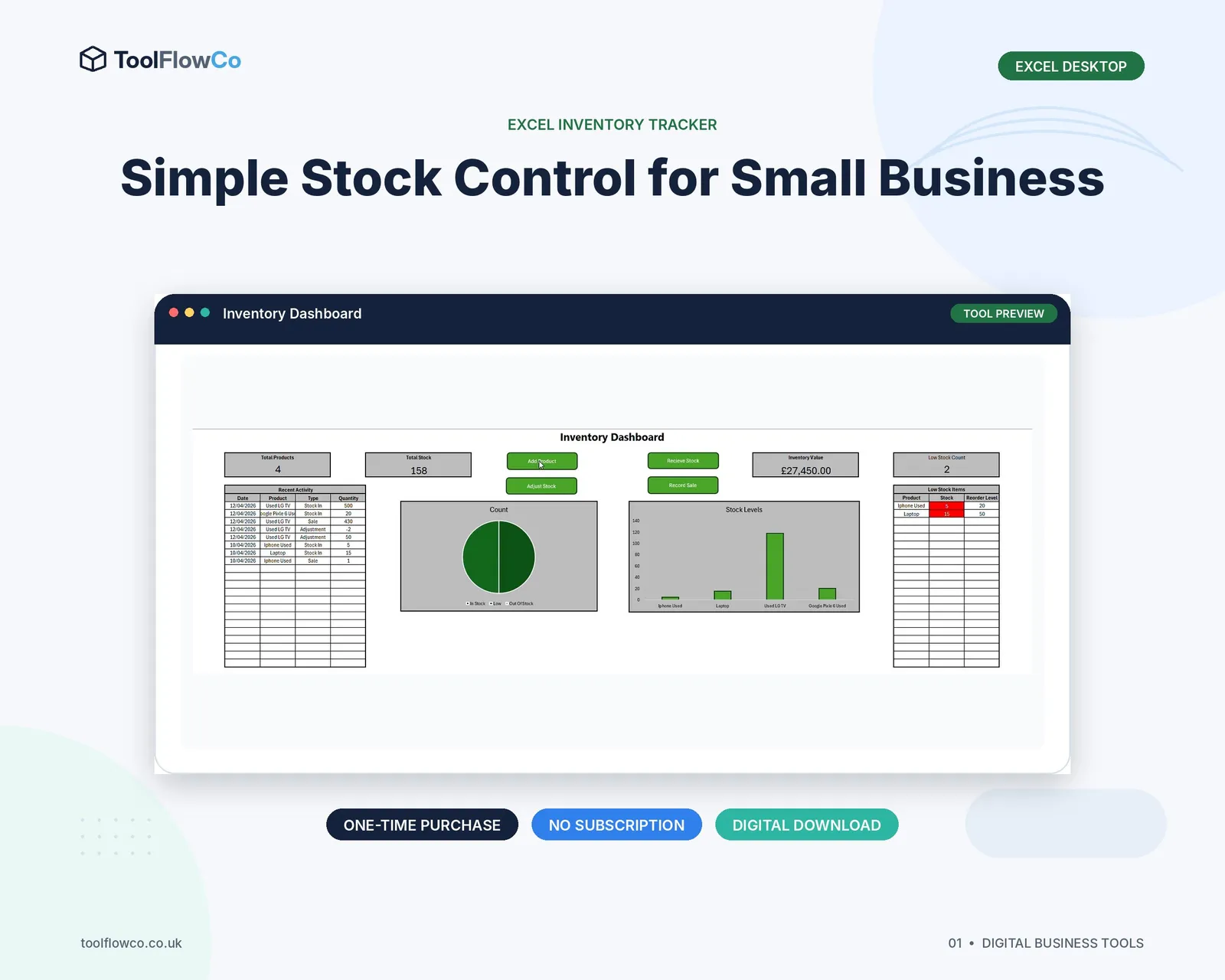
- Choose desktop Excel when the product relies on VBA, desktop Office integration or a local workbook process.
- Check the actual tool requirements; a file cannot simply be moved between platforms when its automation is platform-specific.
Where Google Sheets is strong
- Browser access from supported devices
- Real-time collaboration
- Sharing and permission controls
- Version history
- Integration with Google Forms and Apps Script
- No need to email multiple workbook copies
Where desktop Excel is strong
- Familiar desktop spreadsheet environment
- VBA forms and macros
- Integration with desktop Office applications
- Power Query, PivotTables and local data tools
- Offline use
- Control of a local file-based process
A practical comparison
| Area | Google Sheets | Desktop Excel |
|---|---|---|
| Access | Browser-based with a Google account | Installed desktop application |
| Collaboration | Built for simultaneous editing | Depends on storage and sharing setup |
| Automation | Apps Script and web-app options | VBA, macros and Office integration |
| Offline work | Possible with setup and limitations | Natural fit for local use |
| Compatibility | Does not run Excel VBA | Does not run Google Apps Script |
| Deployment | Copy and authorisation may be required | Macro security and trusted file setup may be required |
Choose based on the users
Ask where users work, how many people edit the records, whether they have a reliable internet connection and whether they already use a Google or Microsoft environment. A technically impressive tool will fail if the normal users cannot access or maintain it.
Choose based on the automation
A VBA-based Excel inventory system may include forms and desktop integrations that do not work in Excel Online or Google Sheets. A Google Sheets web app may require Apps Script permissions and cannot be opened as a working Excel macro file.
Use the same inventory principles on either platform
- One product record per item
- Controlled locations
- A complete movement history
- Validated quantities and movement types
- Low-stock or reorder rules
- Clear permissions and backup
The platform changes the delivery method, but it does not remove the need for good data design.
Be careful when converting files
Uploading an Excel workbook to Google Drive or downloading a Google Sheet as Excel does not guarantee that macros, Apps Script, forms, validations, charts or formulas will behave the same way. Test the full workflow before migration.
Know when neither is enough
When the operation needs strict permissions, high transaction volume, several connected fulfilment stages or integrations with other systems, a dedicated database or inventory platform may be more suitable than either spreadsheet environment.
Frequently asked questions
Can an Excel VBA inventory tool run in Google Sheets?
No. Google Sheets does not run Excel VBA. A separate Apps Script or Sheets-native version is required.
Can several people edit an Excel inventory workbook?
It depends on the storage, version and workbook design. A file with VBA and form-based workflows may require more controlled use than a normal shared workbook.
Is Google Sheets better for remote teams?
It is often convenient for browser-based collaboration, provided the workflow, permissions and Apps Script requirements suit the team.
Which is better for offline stock control?
Desktop Excel is usually the more natural fit for a local offline workbook. Google Sheets offline use requires configuration and may not suit every scripted workflow.
Choose the working environment first
Google Sheets is a strong choice for browser access and collaboration. Desktop Excel is a strong choice for local workbooks, VBA and desktop Office workflows. Select the platform that matches the users and automation, then apply the same disciplined product, location and movement structure.