
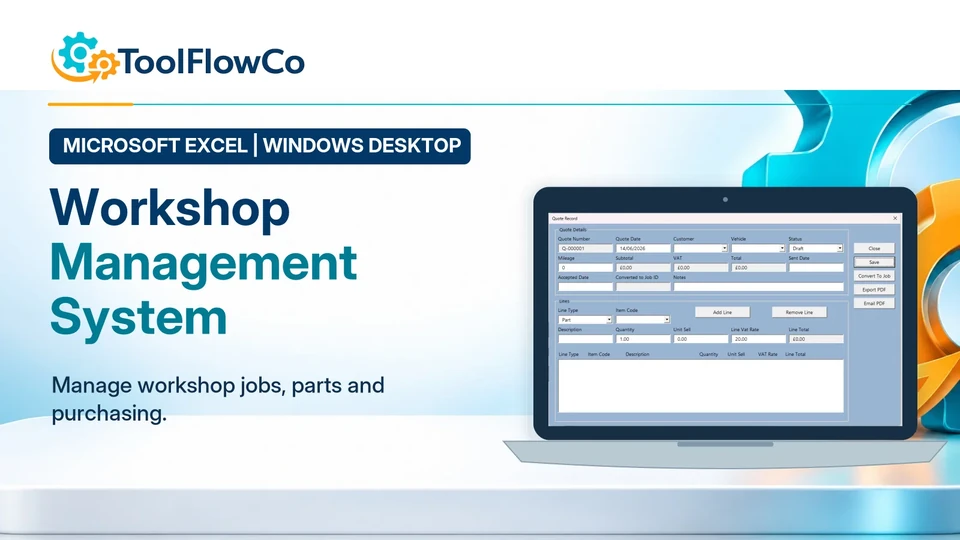
This article describes ToolFlowCo product development and testing. It is not presented as a customer deployment and does not claim measured customer time, cost or revenue improvements.
When I began building workshop software in Excel, my goal was to connect the records behind each job rather than create another isolated job-card spreadsheet.
A garage or repair workshop may start with separate customer lists, vehicle records, parts sheets, purchase orders, quotes and invoices. Each file can work on its own, but the overall process becomes difficult to follow when the same information has to be re-entered several times.
The completed workbook brings customers, vehicles, jobs, stock, purchasing and invoicing into one macro-enabled Excel workflow. This Build Story explains how the structure developed, which design decisions mattered most and how the system was tested before being prepared as a ToolFlowCo product.
Why I started building workshop software in Excel
A workshop does not manage jobs in isolation. A job normally belongs to a customer and a vehicle. It may begin with a quote, require parts from stock or a supplier, use labour, and finish with an invoice and payment status.
When those records are split across several workbooks or paper forms, common problems include:
- Customer and vehicle information being entered repeatedly
- Quotes that cannot be followed easily into active jobs
- Parts issued to work without a consistent stock movement
- Purchase orders that are not connected to workshop demand
- Completed jobs waiting to be invoiced
- Unclear payment and outstanding-invoice information
The system therefore needed one connected route from the initial customer record to the final invoice.
The core workflow
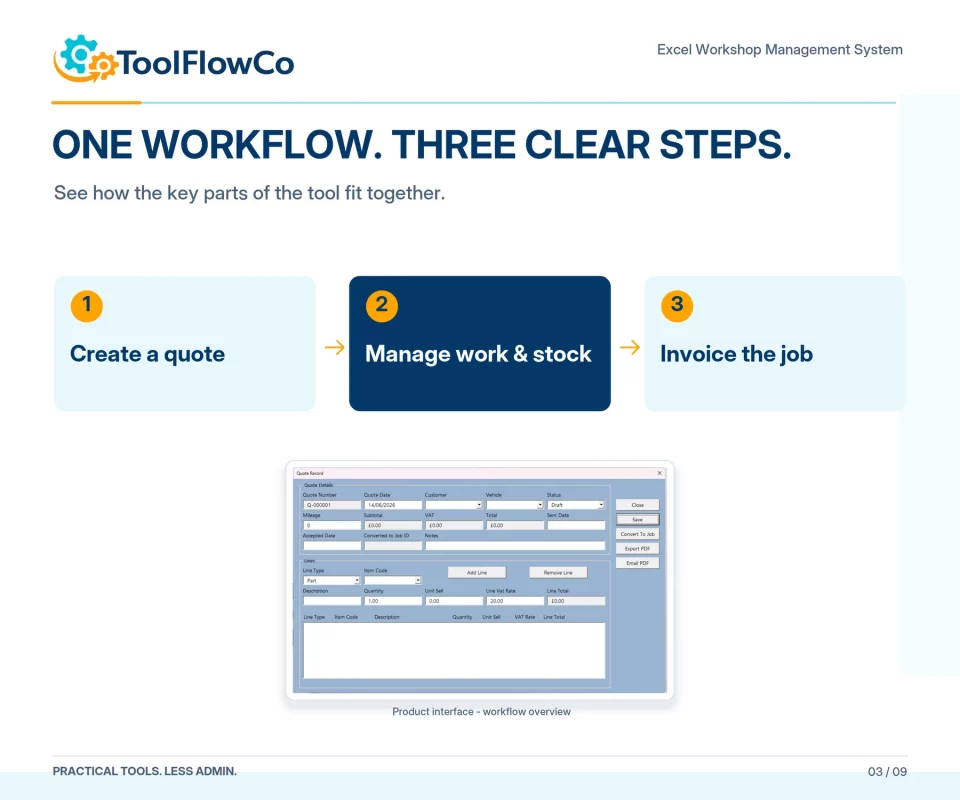
The workbook was organised around the following sequence:
- Create or select the customer.
- Add the vehicle or equipment record.
- Prepare a quote where required.
- Convert approved work into an active job.
- Record parts, stock activity and purchasing requirements.
- Track the job through its working statuses.
- Move completed work into the ready-to-invoice stage.
- Create the invoice and monitor payment.
That sequence gave every form and dashboard measure a clear purpose. A screen was useful only when it supported one of these transitions or helped the user review work that needed attention.
Customers and vehicles had to stay connected
The customer and vehicle records form the foundation of the system. A vehicle can carry registration, make, model and other useful details, while the customer record stores the contact information used by quotes, jobs and invoices.
The important part was not the number of fields. It was maintaining the correct relationship so that selecting a vehicle also identifies the right customer and the workshop history can be reviewed consistently.
This reduced repeated typing and helped prevent a quote, job or invoice from being attached to the wrong record.
Quotes needed a controlled path into jobs
A quote is useful only when the next action is clear. The workbook therefore separates quoted work from active workshop work and allows the process to move forward when the customer accepts the proposal.
The design had to preserve the commercial detail while avoiding duplicate records. The accepted quote should provide the basis for the job rather than forcing the user to rebuild the same work from the beginning.
Status labels were also important. Draft, quoted, accepted, active, complete and invoiced are not decorative text; each status affects the available actions and the dashboard totals.
Jobs, tasks, parts and labour belong together
The active job is the operational centre of the system. It records what the workshop is doing and provides the link to parts, labour and the invoice that will follow.
During development, I reviewed whether users should have to leave the job screen whenever they needed to add parts or labour. That interruption made the workflow feel fragmented, so the later design brought those actions closer to the job itself.
The same principle applied to parts information. Adding a part to a job should retain the part identity, description and cost information rather than transferring only a quantity or an incomplete reference.
Stock control had to reflect real workshop movement
A parts register is more useful when it records movement rather than only a current number. The workbook therefore distinguishes receipts, issues, returns and adjustments.
This makes it possible to review why a balance changed and to identify low-stock items that may affect future jobs.
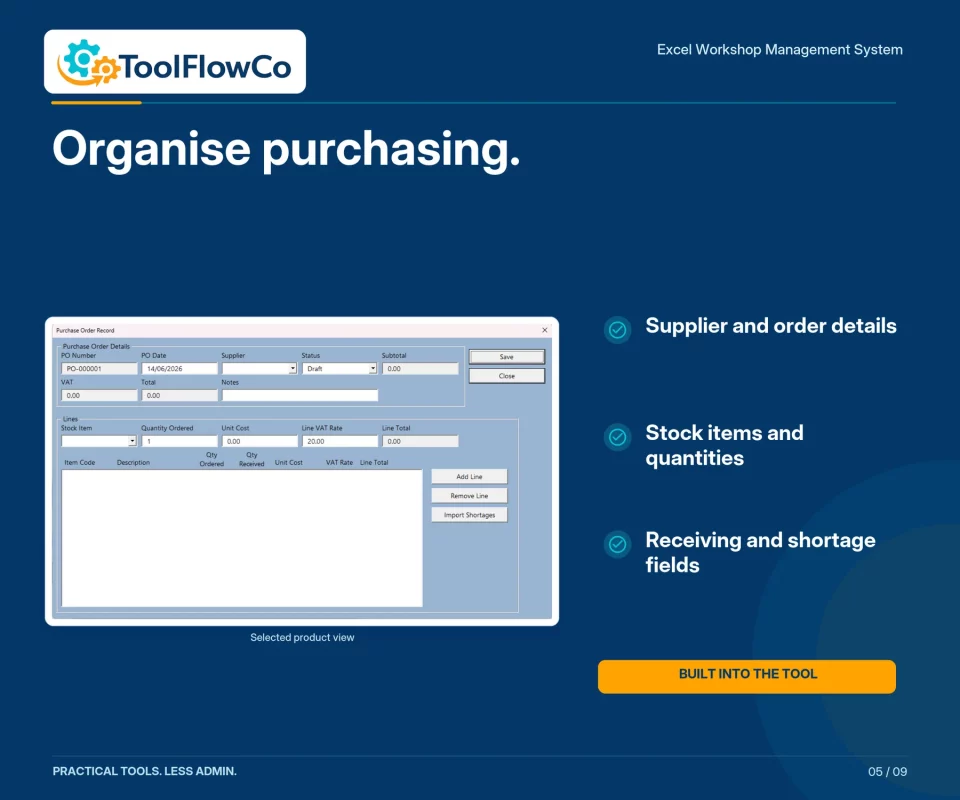
The stock process also links naturally to purchasing. When a required part is not available, the workshop needs a clear way to order it, track the purchase order and later receive the quantity into stock.
Purchase orders needed their own lifecycle
A purchase order can move through draft, sent, part-received, received and closed stages. The workbook needed to keep that status separate from the workshop job while still supporting the wider parts workflow.
Receiving part of an order should not close the remaining balance, and a fully received order should no longer appear as outstanding. These rules are small individually, but together they determine whether the dashboard is trustworthy.
Ready to invoice became an important control point
One of the most useful dashboard states is work that is operationally complete but has not yet been invoiced.
Without that distinction, a completed job can disappear from the active list before the financial document has been created. The workbook therefore keeps a visible ready-to-invoice stage so the user can complete the commercial process.
Invoices then carry their own status so outstanding payments can be reviewed separately from active workshop work.
Designing a usable Excel interface
The project uses dedicated UserForms and a dashboard rather than expecting users to work directly inside data tables.
The interface went through several passes covering:
- Consistent button sizes and action colours
- Clear separation between create, save, archive and close actions
- Search and filtering for larger record lists
- Readable status indicators
- Forms that remain usable on a normal laptop screen
- Warnings when a required record or software condition is missing
A professional layout is not only a visual improvement. It helps the user understand which action is safe, which record is selected and what should happen next.
Testing the complete route
The workbook was tested as a connected workflow rather than as a collection of individual forms.
- Create a customer and vehicle.
- Prepare a quote containing work and parts.
- Move approved work into an active job.
- Add labour and parts against the job.
- Issue available parts from stock.
- Create a purchase order for unavailable parts.
- Receive a partial quantity and keep the remaining order open.
- Receive the final quantity and close the purchase order.
- Complete the workshop job.
- Confirm it appears as ready to invoice.
- Create the invoice and review its payment status.
- Check that customer, vehicle, job, stock and financial records remain connected.
This type of testing exposed issues that would not be visible when opening one form on its own, particularly around status changes, selected IDs and the transfer of parts information.
Preparing the workbook for resale
After the core logic was stable, the system was reviewed as a product rather than a development workbook.
The final preparation included:
- Removing temporary build and repair code that was no longer needed
- Checking the active forms and runtime modules
- Clearing test records and preparing a reusable starting point
- Reviewing compatibility and macro requirements
- Preparing screenshots, listing copy and user guidance
- Testing the most important workflows again after consolidation
What I learned from the build
The main lesson was that workshop software is about record continuity. A job should not lose its connection to the customer, vehicle, quote, parts or invoice as it moves through the process.
I also learned that status design is operational logic. A dashboard can only be trusted when each transition is controlled and every completed action updates the correct next stage.
Finally, the most useful interface is usually the one that keeps related actions close together. Requiring the user to return repeatedly to a control centre may be technically possible, but it makes daily work slower and less clear.
Who the workbook is intended for
The ToolFlowCo Excel Workshop Management System is intended for independent garages, mobile mechanics, repair workshops and smaller service operations that want a connected desktop Excel workflow.
It requires Microsoft Excel desktop for Windows with macros enabled. It is not presented as a multi-user cloud platform, a mobile technician app or an enterprise garage-management system with every possible integration.
Use the completed workshop system or discuss a more specific workflow.
The finished workbook provides the connected customer, vehicle, job, stock, purchasing and invoicing route described in this article. Where different fields, reports or process stages are needed, the same foundation can be discussed as a custom Excel project.
Compare workshop systems: See the Workshop and Garage Management Tools page to compare the different workshop workflows and products available.
For broader spreadsheet changes, see Excel VBA Automation and Customisation.
Compare the relevant tools
Review the product workflow, software requirements and included files before purchasing: Excel Garage Quote, Job and Invoice Tracker for Mechanics.
For the programming platform used in this development story, see the Microsoft Office VBA reference.
Put the workflow into practice
Explore the relevant tools.
Compare the product requirements with the approach in this guide.
Microsoft Excel
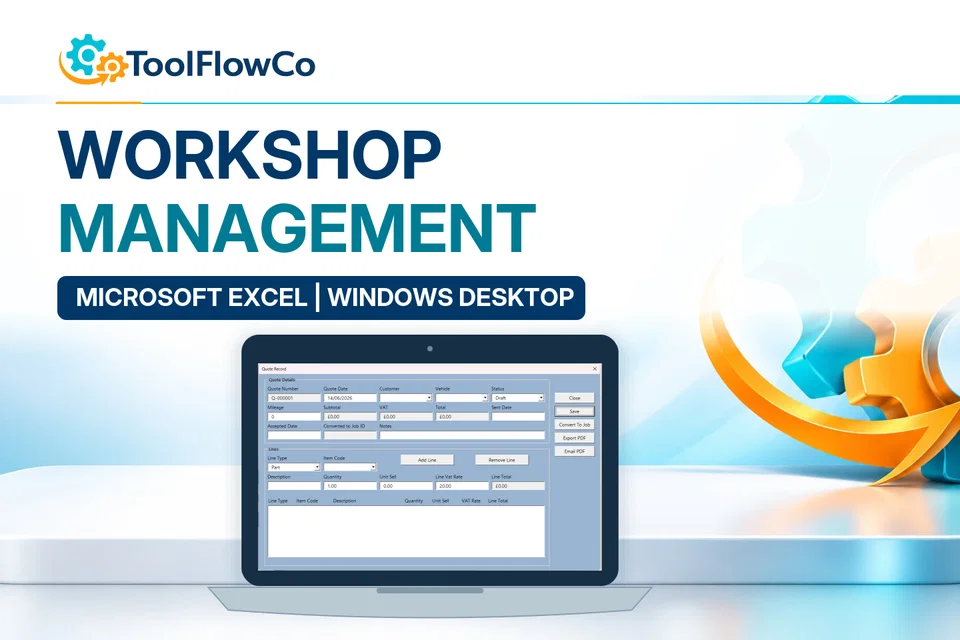
Excel Workshop Management System
Run a complete workshop workflow from one Excel dashboard, including jobs, vehicle records, stock, purchasing and invoicing.
Microsoft Excel
Garage Quote, Job & Invoice Tracker
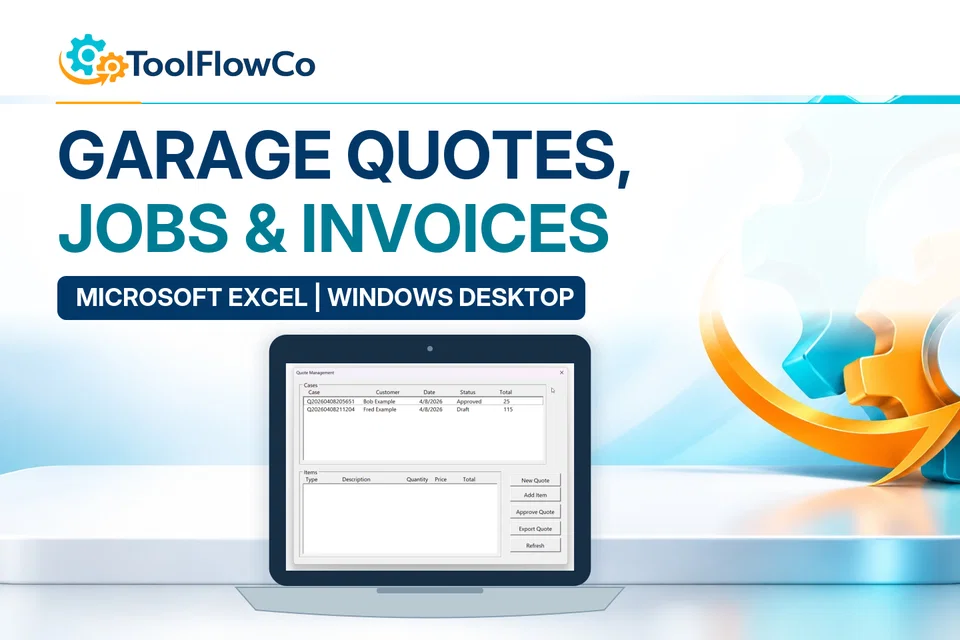
Create customer quotes, progress approved work into workshop jobs and produce invoices from one focused Excel tool.